Why Does NetMirror Video Freeze While Audio Plays?
Video freezing while audio continues is a common frustration for streaming app users. If you use the NetMirror APK on Android in India, this issue can interrupt your experience completely. This guide explains the exact causes and how to fix them fast.
What Causes Video to Freeze While Audio Keeps Playing?
This problem happens when your device processes audio and video separately. Audio uses very little data and system power. Video needs much more. When something slows down video processing, audio keeps going, but the picture gets stuck.
The result is a frozen frame with sound still playing normally. This is not a rare bug. It is one of the most reported playback issues across streaming apps, including the NetMirror app.
Common Reasons the Video Freezes but Audio Continues
Several technical issues can cause this. Understanding them helps you fix the right problem instead of guessing.
Slow or Unstable Internet Connection
Video streaming requires a consistent data speed. Audio files are smaller and can buffer ahead quickly. When your connection drops even for a few seconds, video playback stalls while buffered audio continues.
For HD or 4K streams on the NetMirror APK, a minimum of 5 to 10 Mbps is generally recommended. Slower connections on Jio, Airtel, or BSNL broadband can cause frequent video freezes, especially during peak hours.
Overloaded Device RAM
When your phone runs too many apps at once, available RAM drops. Video decoding is memory-intensive. If RAM runs out, the video frame rendering stops. Audio, which needs far less memory, keeps playing without interruption.
Budget Android phones with 2 GB or 3 GB RAM are especially vulnerable to this issue.
Outdated App Version
An older version of the NetMirror app may have video rendering bugs that were already fixed in newer releases. Running outdated software means you miss patches that developers release specifically for playback stability.
Always keep your app updated to the latest version to avoid known bugs.
Hardware Acceleration Conflicts
Most streaming apps use hardware acceleration to offload video decoding to the GPU. On some Android devices, this feature causes conflicts. The GPU fails to render frames correctly while the audio decoder continues independently.
Disabling hardware acceleration in app settings can fix this on affected devices.
Corrupted App Cache
Over time, the app cache collects temporary files. Some of these files become corrupted. When the app tries to read the corrupt cache during playback, the video stutters or freezes. Audio is unaffected because it streams from a different buffer.
Clearing the cache from Android settings usually resolves this quickly.
Background Processes and Battery Saver Mode
Battery saver modes on Android throttle CPU and GPU performance. This limits how fast your device can decode video frames. Audio decoding requires minimal processing, so it continues without delay.
Disabling battery saver or background data restrictions while streaming can prevent this issue.
How to Fix Video Freezing on the NetMirror APK
These steps cover the most effective solutions in order of simplicity. Start from step one and work down until the problem stops.
Steps to Fix Video Freeze on NetMirror App
- Check your internet speed. Open a speed test app like Speedtest by Ookla. Make sure your download speed is above 5 Mbps for smooth HD playback. Switch from mobile data to Wi-Fi if possible.
- Restart the NetMirror APK. Close the app completely from recent apps. Reopen it and try playing the video again. This clears any temporary memory issues.
- Clear the app cache. Go to Android Settings → Apps → NetMirror → Storage → Clear Cache. This removes corrupted temporary files without deleting your login or data.
- Close background apps. Swipe away all apps running in the background before launching NetMirror. This frees up RAM for video decoding.
- Disable battery saver mode. Go to Settings → Battery → Battery Saver and turn it off. Also check that NetMirror is not restricted under background app limits.
- Update the NetMirror app. Download the latest version from the official source at netmirror-apks.com. Older versions may carry unpatched playback bugs.
- Try a lower video quality. Inside the player, switch from HD to SD or 720p to 480p. Lower-quality streams are easier to decode and need less bandwidth.
- Disable hardware acceleration. If your device supports this setting, go into NetMirror’s playback or developer settings and turn off hardware acceleration. Use software decoding instead.
- Restart your device. A full restart clears RAM, resets network connections, and stops background processes that could interfere with playback.
- Reinstall the app. If none of the above works, uninstall NetMirror and download a fresh copy from netmirror-apks.com. A clean install removes all corrupted files.
Video Freeze on Smart TV vs. Android Phone
The same problem can behave differently depending on your device. Here is a quick comparison to help you identify where the issue sits.
| Device | Common Cause | Best Fix |
|---|---|---|
| Android Phone | Low RAM, battery saver | Close apps, disable saver. |
| Smart TV | Weak Wi-Fi signal | Move the router closer or use Ethernet. |
| Android TV Box | Outdated firmware | Update firmware and app. |
| PC via browser | Browser cache or extension | Clear cache, disable extensions. |
For Smart TV users running the NetMirror app, a wired Ethernet connection is far more stable than Wi-Fi for uninterrupted streaming.
Does the Video Quality Setting Affect Freezing?
Yes, directly. Higher video quality means more data per second. If your device or connection cannot handle that data rate, video frames drop while audio continues.
Auto quality settings adjust the stream to your connection speed. This is usually the safest option if you experience frequent freezing. Manual selection of a lower resolution like 480p gives more consistent playback on slower connections.
Many users in areas with weaker 4G coverage in India report that switching from 1080p to 720p eliminates freezing entirely on the NetMirror APK.
When the Problem Is on the Server Side
Sometimes the issue is not your device or connection. Content servers can experience high traffic or technical faults. When the video source struggles, your device receives incomplete data, causing video to stall while the audio buffer plays out.
Signs that the problem is server-side include:
- Multiple users reporting the same issue at the same time
- The problem appearing only on specific content, not all videos
- Normal playback returning without any changes on your end
In these cases, waiting a few minutes and retrying usually resolves the issue. You can also try a different content source within the app.
Tips to Prevent Video Freezing on NetMirror App
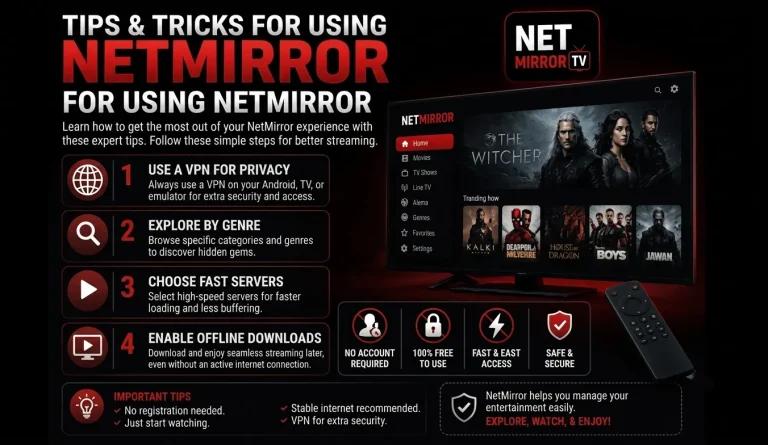
For ongoing tips to improve your streaming experience, refer to the tips and tricks of the NetMirror guide available on the site. Here are the most effective preventive steps:
- Keep the NetMirror APK updated at all times
- Connect to 5 GHz Wi-Fi instead of 2.4 GHz for faster, less congested speeds
- Clear the app cache once every two weeks
- Avoid streaming during peak network hours (typically 8 PM to 11 PM in India)
- Keep at least 1 GB of free storage on your device
- Restart your router weekly to maintain stable speeds
- Avoid running downloads or uploads while streaming
Conclusion
Video freezing while audio keeps playing is almost always caused by a bottleneck in video decoding, internet speed, or device memory. The NetMirror APK works best when your device has enough RAM, your internet is stable, and the app is updated. Following the steps in this guide will fix the issue in most cases. If the problem persists, reinstalling the app or checking your network setup will usually be the final solution.